Attaching Multiple CAPA Numbering Schemes
If you want to add more numbering schemes for different types of CAPAs, you can create the new scheme codes and later attach them from the CAPA workflow. The example steps below display how attach Numbering Schemes indicated different CAPA Types, however, you can use any field to execute the numbering policy.
- From the SmartSolve Portal Page, click the Administrator Tools tab.
- In the Designer section, click Workflow Designer.
- From the Workflow Designer menu, search for and double left click to select the CAPA Workflow.
Result: The CAPA Workflow is displayed. - Click to select the CAPA Initiation (Initiating Form) under System Forms.
- Click Submission > Add Action > Numbering Scheme.
Result: The Numbering Scheme window is displayed. - Enter the Name of the numbering scheme, such as CAPA Type – Internal Numbering Scheme.
- Click the
 icon to add a new rule.
Result: The Rules window is displayed. - Click the New button to add a new rule.
Result: The Rule Editor window is displayed. - Enter the rule name, such as CAPA Type Numbering – Internal.
- Click the icon to select the entity for which the field exists.
Result: The Entities window is displayed. - Double click to select the parent entity (first entity listed).
Result: The Entity has been added to the Rule Editor. - Click Add Condition.
Result: A row has been added to the Condition section of the Rule Editor.

- Click Left Value > Select a Field.
Result: All fields for the selected entity are displayed. - Double click to select the field which will execute the numbering policy, such as CAPA Type.
Result: The field is added to the Left Value.

- Click Operator > is equal to.
Result: The operator is displayed.

- Click Right Value > Enter a Value.
Result: The Enter Value window is displayed. - Enter the type value of the data which will execute the numbering policy, such as INTERNAL.
- Click Ok.
Result: The Value is added to the Right Value.

- Click Save.
Result: The new numbering scheme is now displayed. - Select the numbering rule.
Result: The new numbering rule has been added to the numbering scheme action.
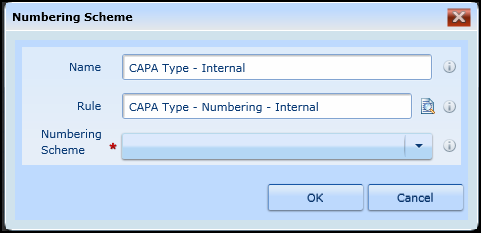
- Click Numbering Scheme > enter a Value.
Result: The Enter Value window is displayed. - Enter the type value of the Numbering Scheme code which will execute the numbering policy, such as CAPA – Internal.
NOTE: Ensure that the value entered equals the value configured in the Numbering Scheme table under Admin > Setup > System Wide > Numbering Scheme.
- Click Ok.
Result: The new numbering scheme has been added to the numbering scheme action.
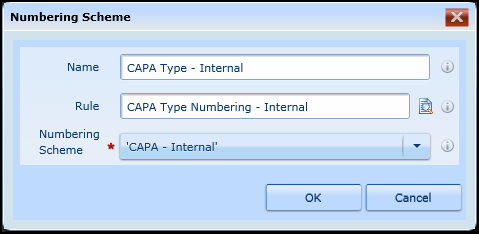
- Click Ok.
Result: The new numbering scheme action has now been configured. - Configure all other numbering scheme actions, then publish the workflow.
Result: The new numbering scheme policy is in effect and can be tested by creating a new CAPA.
See Also
Accessing CAPA Numbering Schemes